
key Takeaway
- Disable "Install Unknown Apps" to prevent potentially harmful apps from being installed without your knowledge. This setting can be found in the app installation settings.
- Turn off "Developer Options" to avoid accidental system changes and potential exploitation by malicious apps. To do this, go to the "About phone" section in settings, tap "Build number" multiple times to enable developer options, and disable them from the main settings menu.
- Disable "Allow Mock Locations" to prevent GPS spoofing and protect your location's privacy. This option is in the "Developer Options" menu mentioned earlier.
- Turn off "USB Debugging" to avoid unauthorized access to your device when connected to a computer. This option can also be found in the "Developer Options" menu.
- Disable "Smart Network Switch" to prevent your device from automatically connecting to insecure Wi-Fi networks. This setting can be found in the Wi-Fi settings.
1 Wi-Fi And Bluetooth Scanning
This feature sounds super exciting, but it’s not. It scans all the Wi-Fi, router, public hotspot, etc. This feature should be turned off if you enjoy free hotspots in a public space or some Bluetooth. Otherwise, everything comes with a price. It is how hackers scan your phone and get in. Protect your privacy by disabling it right now.
How To Disable Wi-Fi And Bluetooth Scanning On Android ?
- Go to the settings of your phone
- Tap on the location icon
- Tap Wi-Fi scanning and Bluetooth scanning
- Turn off both of them
2 Turn Off Location
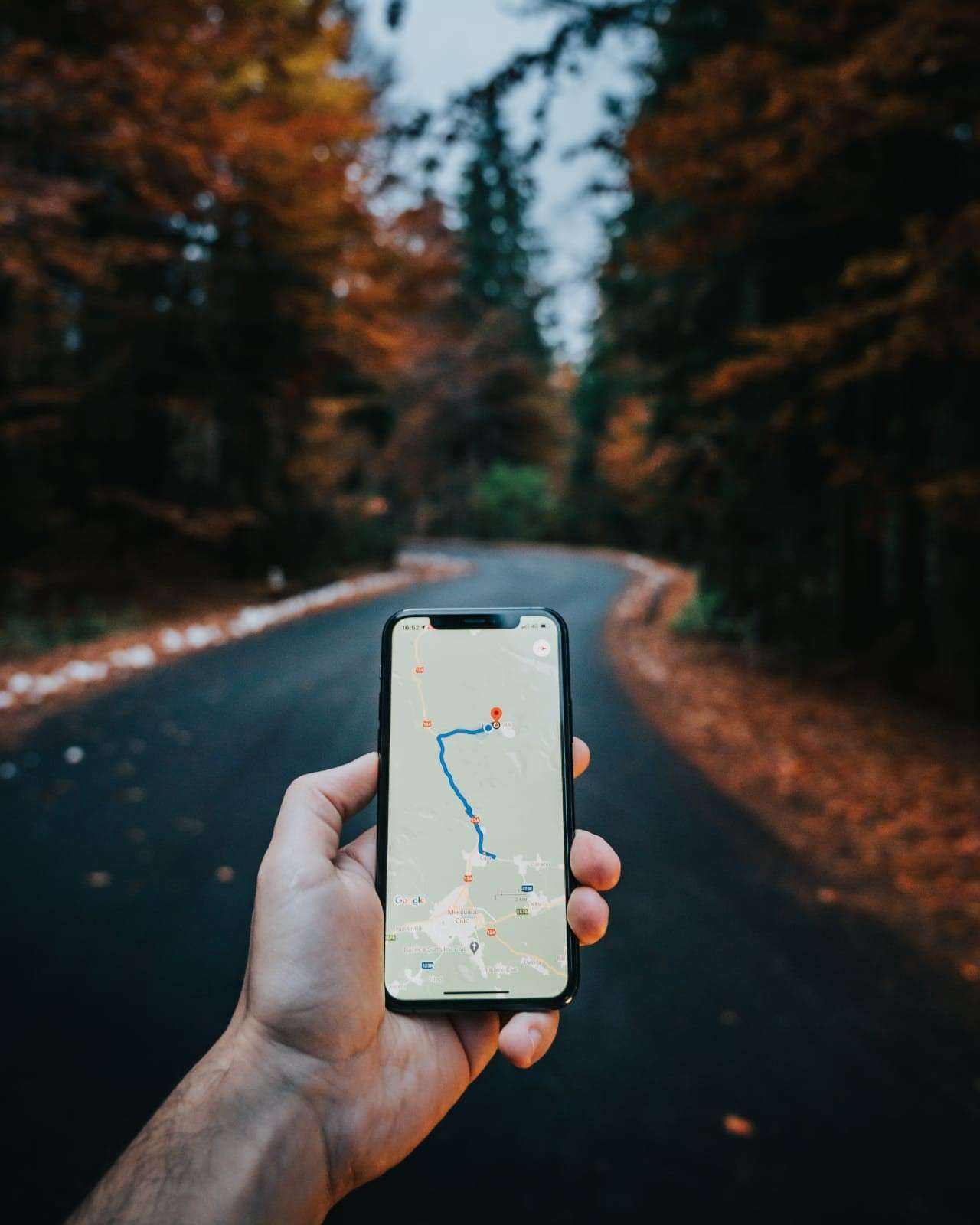
Your android phone always uses location and tracks your current position. It keeps a log about everywhere you go. Here’s how you can disable it.
How To Turn Off Location On Android
- Go to the settings of your phone
- Tap on the location
- Tap location services
- Tap on Goggle locations history
- Turn it off or auto delete after a set time
3 Personalized Ads
Android is famous enough for bombarding you with plenty of personalized ads. These all irritate us whenever we are searching or talking to someone. Are you facing this problem? Don’t worry. We got your back. Here’s a setting you can do to block all the irritating and personalized ads on your android phone.
How To Off Personalized Ads On Android
- Go to the settings of your phone
- Click manage your account
- Click data and privacy on the top scrolling bar
- Turn off all personalized ads from there
4 Precise Location For Apps
Don’t allow apps to know your precise location; 99% of apps don’t even need to know your exact location to work. Hackers are constantly trying to access your exact location to commit cybercrimes. This feature should be immediately turned off.
How To Disable Precise Location For Apps
- Go to your phone’s settings
- Tap on apps
- Tap app management
- Click location permission for each app
- Turn it off
5 Sensitive Content On The Lock Screen
Are you the one who receives their notifications when your phone is turned off?? This is the one most dangerous thing on your android. Your phone is showing your personal and private information to even strangers who are looking over your shoulders. Your passwords, OTP, Bank balance, and messages are your sensitive data; you should hide it from others.
How To Protect Sensitive Content On Lock Screen Of Your Android
- Go to settings
- Tap on Notifications
- Disable sensitive notifications
If you are particularly concerned about your privacy, these are some simple settings you need to know and take more control over.
Final Thought
In conclusion, ensuring the security and privacy of your Android device is of utmost importance in today's digital age. By being aware of and turning off specific dangerous settings, you can significantly reduce the risk of potential threats and unauthorized access. Please take the time to review and adjust your device settings, as discussed in this blog, and you'll be better equipped to protect your personal information, maintain control over system changes, and protect your location data. Stay informed, stay vigilant, and take proactive steps to secure your Android device to enjoy a safer and worry-free mobile experience. Remember, a few simple adjustments can make a difference in keeping your device and data secure.
Related Post:
- How To Stop App Notifications on Android
- Stop Annoying App Notifications On Android - IFixScreens
- Android 12 is here with brand new look feel and privacy updates
- 5 Apps Slowing Down Your iPhone SO Much