Key Takeaways:
- The iPad in 2023 offers versatility with hidden features, apps, and tricks.
- Users can optimize their tablet for work, entertainment, and creativity.
- Exploring these tips unleashes the iPad's full potential for an enhanced user experience.
- Step-by-step instructions enhance accessibility and implementation.
- Author's expertise ensures a deep understanding of iPhone capabilities.
1. Use Your iPad as a Second Screen.
If you're an iPad Pro user, you can harness the Sidecar feature to transform your iPad into a second screen for your Mac. This feature, compatible with macOS Catalina or later, allows you to extend your Mac's display or mirror it. This is a great way to increase your workspace and improve your multitasking capabilities.
2. iPad Multitasking
The iPad's multitasking capabilities have come a long way. In 2023, you can now easily switch between apps and enhance your productivity. To activate this feature, swipe up from the bottom of your screen, and you'll find a row of recently used apps. It's like having your favorite apps at your fingertips, ready to boost your efficiency.
3. Clean Up Your Home Screen
Your iPad's home screen is where you launch your favorite apps. To keep it organized and free from clutter, you can use the App Library feature. Your apps are automatically categorized, making it easy to find anything you need quickly. Swipe to the right-most screen on your home screen to access the App Library, and tap on the search bar to find your desired app.
4. Quick Notes with Apple Pencil
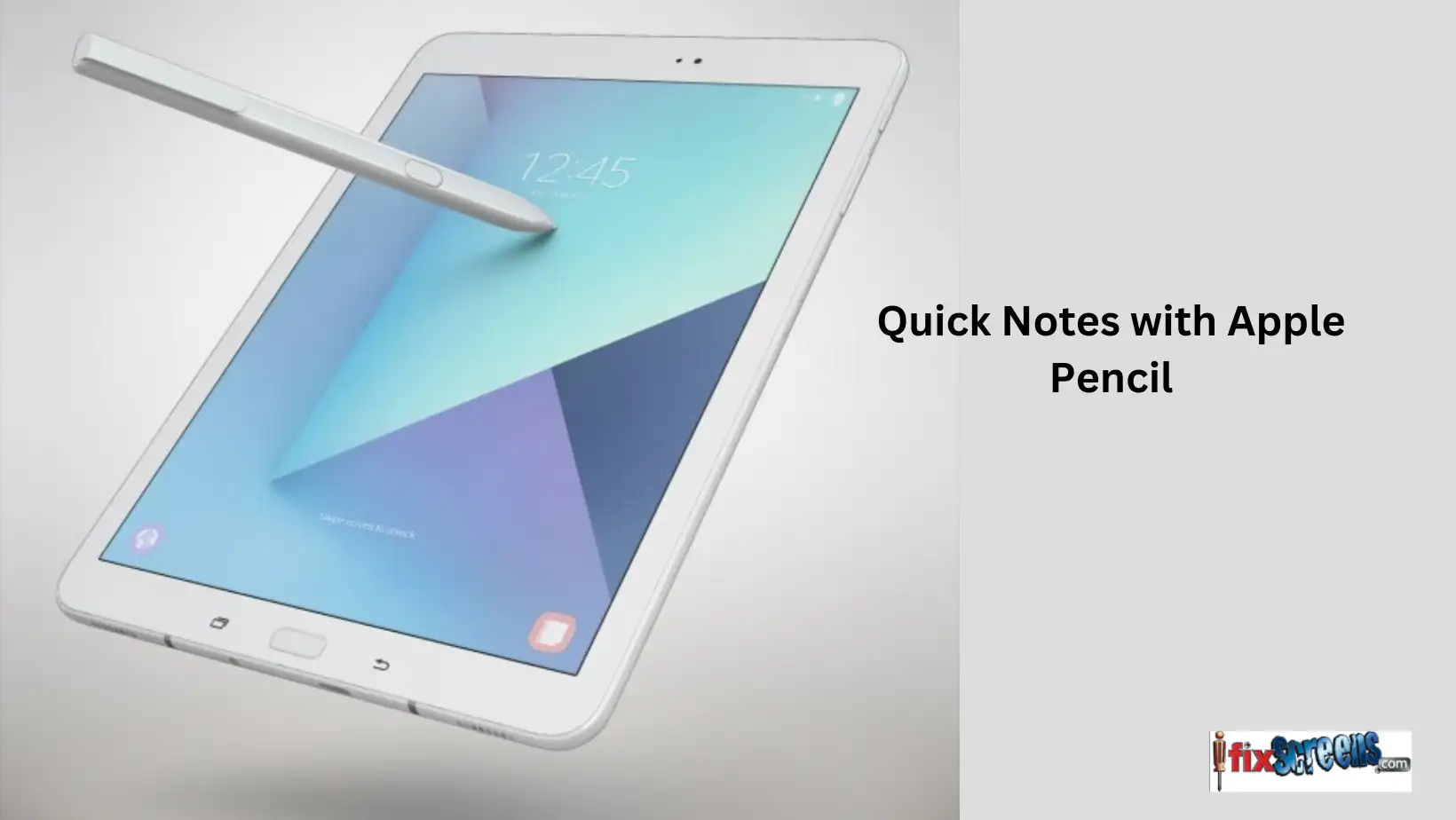
Apple Pencil users, this one's for you. Quick Notes, a new feature on your iPad, lets you jot down notes instantly. Activate it by swiping up from the bottom-right corner of your screen with your Apple Pencil, even if your iPad is locked. This feature is based on your usage history, providing a convenient way to capture your ideas on the fly.
5. Drag and Drop Text
When you want to move Text from one app to another, using your iPad's touch screen can take time and effort. But with the iPad's drag-and-drop text capability, it's a breeze. Select the Text you want to move and drag it to your target app. Whether writing an email or conducting research, this feature makes your workflow seamless.
6. Second Screen for Your Mac
The iPad can be more than a tablet; it can be your second screen for your Mac. With this capability, you can extend your workspace, making multitasking a breeze. Connect your iPad and Mac and enjoy the added screen real estate for better productivity.
7. Swipe for Easy Navigation
Navigating your iPad is a breeze with swipe gestures. Whether you're using your iPad or iPhone, you can swipe left or right to switch between apps, making it a smooth and efficient way to move around your device.
8. Utilize Keyboard Shortcuts
If you're using a keyboard with your iPad, take advantage of keyboard shortcuts. These shortcuts can significantly speed up your tasks, from opening apps to performing actions within apps. It's like having a Mac-like experience on your tablet.
9. Spotlight Search
Need to find something on your iPad quickly? Use Spotlight search. Swipe down on your home screen or tap on the search bar in the App Library to access this feature. It's like having your assistant find anything you need instantly.
10. Explore Safari Extensions
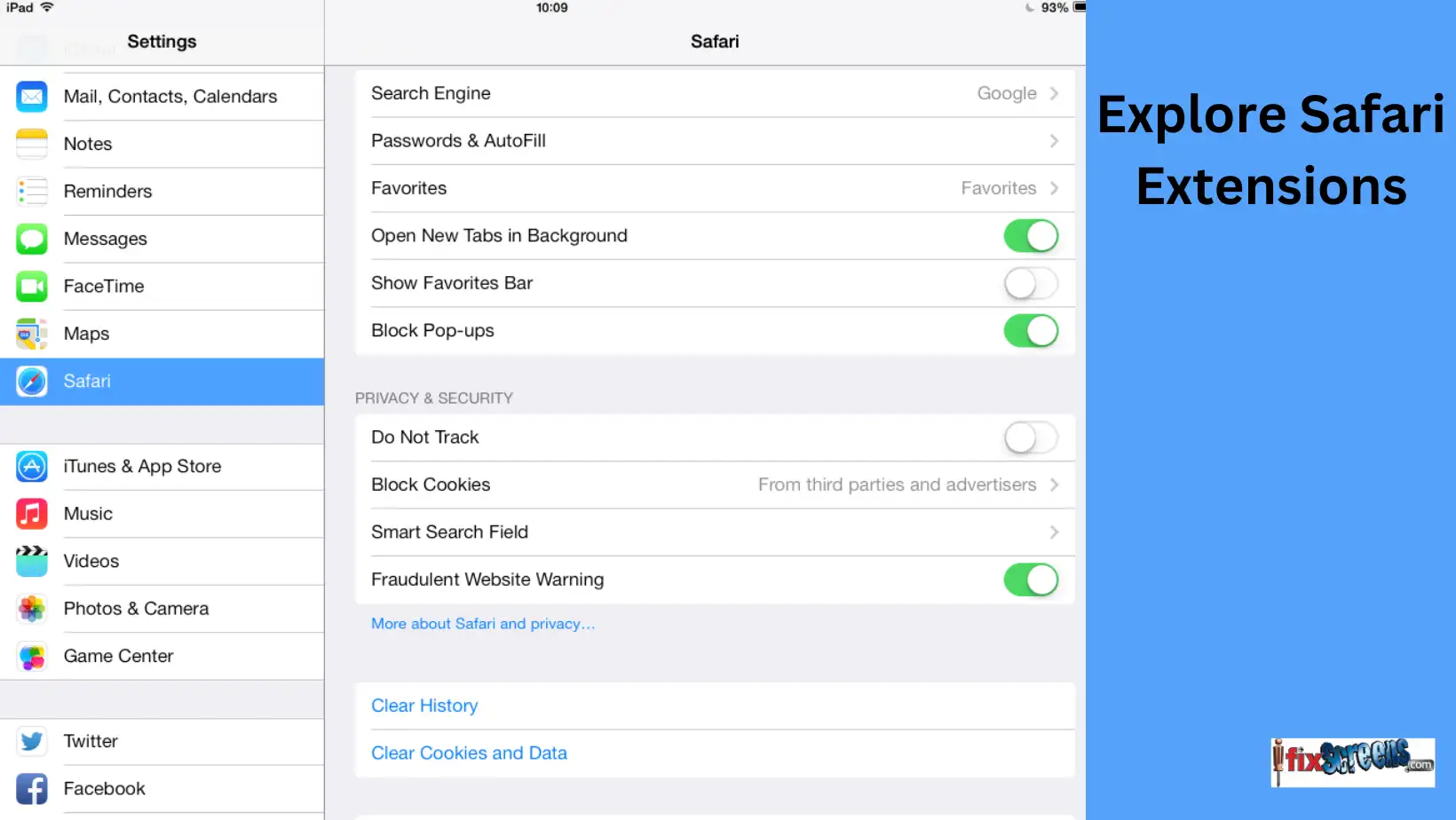
Like on your Mac, you can now download Safari extensions on your iPad. This feature makes your browsing experience more customizable and efficient. From password managers to ad-blockers, you can tailor your web experience to your liking.
11. Organize Your Apps
The App Library feature not only helps you find apps but also organizes them into categories. This makes it easy to locate the app you need, whether for work, entertainment, or productivity.
12. Get Siri Suggestions
Siri can provide suggestions for apps based on your usage history. This helps you find and access the apps you want quickly, further streamlining your iPad experience.
13. Take Advantage of Third-Party Apps
The iPad is not limited to Apple's apps. There's a vast ecosystem of third-party apps that can enhance your productivity, creativity, and entertainment. From note-taking apps to sketching tools, the iPad has a wealth of third-party apps that cater to various needs.
14. Dark Mode for Eye Comfort
If you prefer a darker interface, the iPad offers Dark Mode, just like your Mac. It's a great feature that can be easy on the eyes, especially in low-light conditions.
15. Add Widgets to Your Home Screen
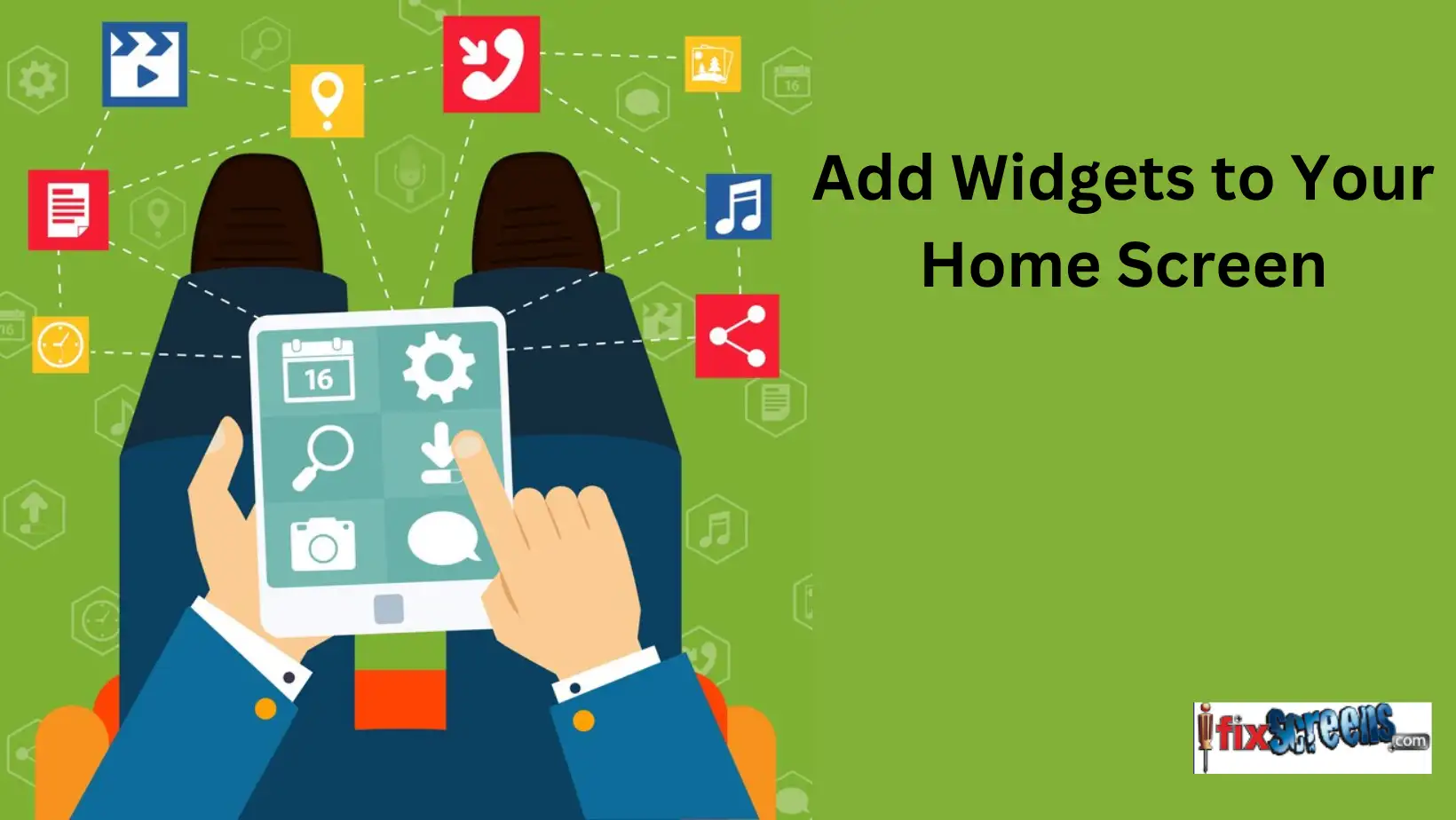
Like on your iPhone, you can add widgets to your iPad's home screen. These widgets provide quick access to information and app shortcuts, enhancing your home screen's functionality.
Final Thoughts
In 2023, the iPad will be more versatile than ever. These hidden features, apps, and tricks allow you to make the most of your tablet, whether for work, entertainment, or creativity. Explore these tips and tricks to unlock the full potential of your iPad and enjoy an enhanced user experience.
- 20 Hidden iPhone Tips And Tricks You Never Knew About
- Essential iPhone Tips And Tricks: Mastering The Basics
- 15 Hidden Features You Must Try On The IOS 17