
Key Takeaways
- Battery drain is often caused by 5G usage, background apps, and display features
- Software updates and settings optimization can significantly improve battery life
- Battery health plays a major role in long-term performance
- Seek professional assistance for persistent issues.
Why iPhone 15 Pro Battery Drains Faster Than Expected
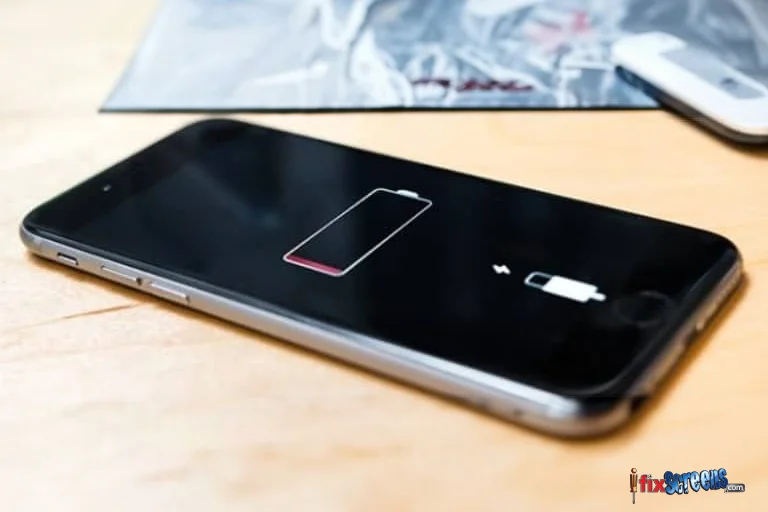
Before fixing the issue, it helps to understand what’s causing it.
High-Performance Hardware
The A17 Pro chip is efficient, but features like ProMotion, advanced camera processing, and real-time background tasks demand more power.
Network Switching and 5G Usage
Constant switching between 5G, LTE, and Wi-Fi increases background power consumption, especially in areas with unstable signal strength.
Background App Activity
Some apps continue syncing, tracking location, or refreshing content even when not actively used.
iOS Optimization Processes
After updates or data transfers, iOS runs background optimization tasks that temporarily increase battery usage.
Battery Health Degradation
Even newer devices can experience abnormal drain if the battery capacity drops faster than expected. A quick iPhone battery health check helps confirm whether the battery is still performing within normal limits.
10 Fixes to Improve iPhone 15 Pro Battery Life
1. Restart Your iPhone
A restart clears background tasks and memory leaks.
- Power off
- Wait 30–60 seconds
- Turn it back on
This simple step often restores normal battery behavior.
2. Update to the Latest iOS Version
Apple frequently releases battery and performance fixes.
Go to:Settings - General - Software Update
Battery drain after updates is common for 24–48 hours, then stabilizes.
3. Switch 5G to Auto or LTE
5G drains more power when signal strength is inconsistent.
Go to:Settings - Cellular - Cellular Data Options - Voice & Data - 5G Auto or LTE
Most users see immediate improvement.
4. Check Which Apps Drain the Battery
Go to Settings - Battery and review which apps consume the most power.
Apps using excessive energy in the background may indicate deeper issues that benefit from iPhone power and battery diagnostics.
5. Limit Location Access
Many apps don’t need constant location tracking.
Go to:Settings - Privacy & Security - Location Services
Set apps to “While Using” or “Never” when possible.
6. Enable Low Power Mode Strategically
Low Power Mode reduces background activity and visual effects.
Enable via:Settings - Battery - Low Power Mode
Ideal when battery drops below 30%.
7. Reduce Screen Power Usage
The display is one of the biggest battery consumers.
- Enable Auto-Brightness
- Reduce screen timeout
- Avoid max brightness indoors
Go to:Settings - Accessibility - Display & Text Size - Auto-Brightness
8. Turn Off Always-On Display
Always-On Display constantly refreshes pixels.
Disable it via:Settings - Display & Brightness - Always-On Display - Off
This alone can add hours of standby time.
9. Reset Network Settings
Network-related bugs can cause silent battery drain.
Go to:Settings - General - Transfer or Reset iPhone - Reset - Reset Network Settings
This won’t erase data but will reset Wi-Fi and cellular connections.
10. Check Battery Health
Go to:Settings - Battery - Battery Health & Charging
If Maximum Capacity drops below 85%, battery replacement may be the best solution.
A battery replacement for iPhone 15 Pro restores performance and prevents sudden shutdowns.
When Battery Drain Means Hardware Trouble
If your iPhone:
- Drains rapidly even in standby
- Heats up without use
- Shuts down unexpectedly
The battery or internal power components may be failing. In these cases, professional iPhone battery replacement is recommended to prevent further damage.
Final Thoughts

Fast battery drain on the iPhone 15 Pro is usually caused by settings, network behavior, or background apps rather than the device itself. Applying these fixes resolves the issue for most users.
If battery performance still feels abnormal after optimization, early inspection by iFixScreens iPhone repair experts helps extend device life and avoid unexpected failures.
- iPhone 15 Pro's Action Button: All You Need To Know
- How To Speed Up Your iPhone In 5 Easy Steps | iFixScreens
- 5 biggest iPhone problems & their solution