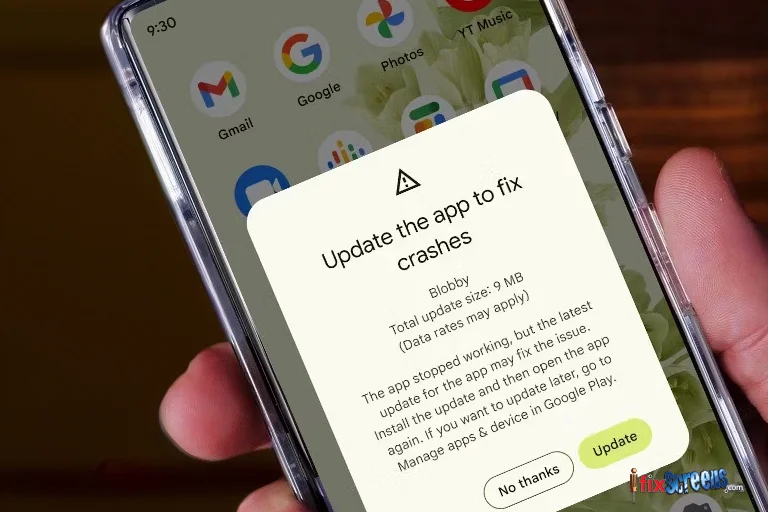
Key Takeaways
- Restart the App and Phone: A simple restart can often resolve apps that keep crashing on your Android device.
- Clear App Cache and Data: Over time, apps accumulate data that can cause crashes. Clear the cache first, and only use "Clear Data" as a last resort.
- Update the App and Your System: Outdated apps and system software can lead to "app is crashing" issues.
- Check App Permissions: Some apps require specific permissions to function correctly. Ensure all necessary permissions are granted.
- Free Up Storage Space: A cluttered phone with low storage can lead to app crashes. Try deleting unused apps, photos, videos, and other large files.
- Check for Conflicting Apps: Rarely, a conflicting app might be causing crashes. Try turning off recently installed apps individually to see if the crashes stop.
- Reinstall the App: If none of the above solutions work, try reinstalling the app. This removes any corrupted files that might be causing the crashes.
- Wipe the System Cache Partition (For Advanced Users): This option clears temporary system files that might be causing issues.
- Factory Reset (Last Resort): This option wipes all your Phone's data and settings, restoring it to its original state. Only use this as a last resort.
- Report the Problem: If none of these solutions fix the crash, it might be an issue with the app itself. Notify the app developer about the issue.
1. Restart the App (and Your Phone):
A simple restart can often resolve apps that keep crashing on your Android device. Close the app entirely and relaunch it.
Hold down the Power button for approximately 30 seconds. You might also need to simultaneously press the Volume Down button on specific device variants, such as Samsung phones, although this usually requires only a brief moment. Release the buttons once your screen powers on.
If the problem persists, try restarting your Phone altogether.
2. Clear App Cache and Data:
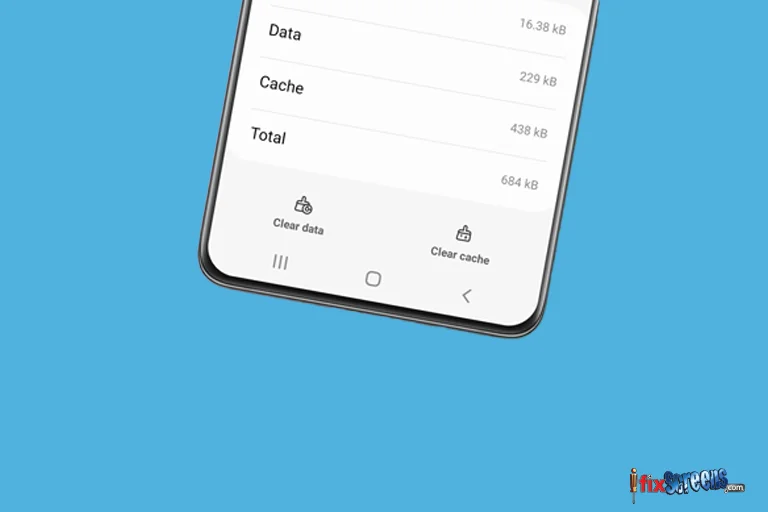
Over time, apps accumulate data that can cause crashes.
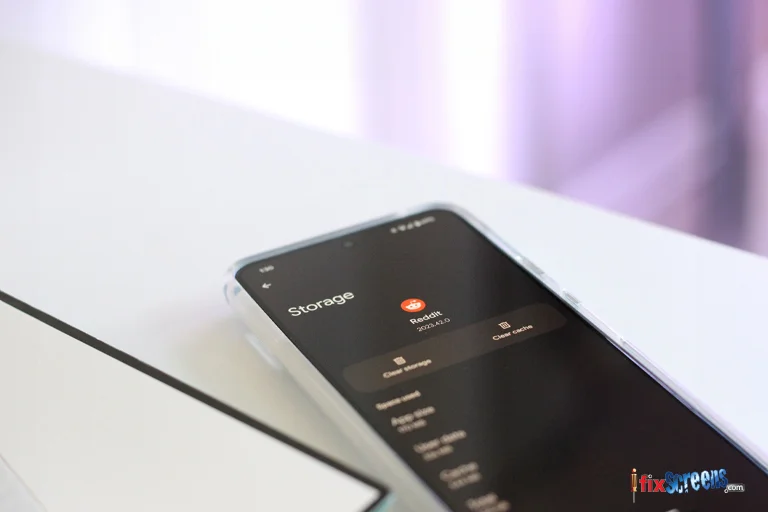
To clear the cache, Go to Settings > Apps (or Applications on some devices) > Find the problematic app > Tap "Storage".
Here, you'll see options to "Clear Cache" and "Clear Data" (be cautious; this deletes user data within the app). Try clearing the cache first, and only use "Clear Data" as a last resort.
3. Update the App and Your System:
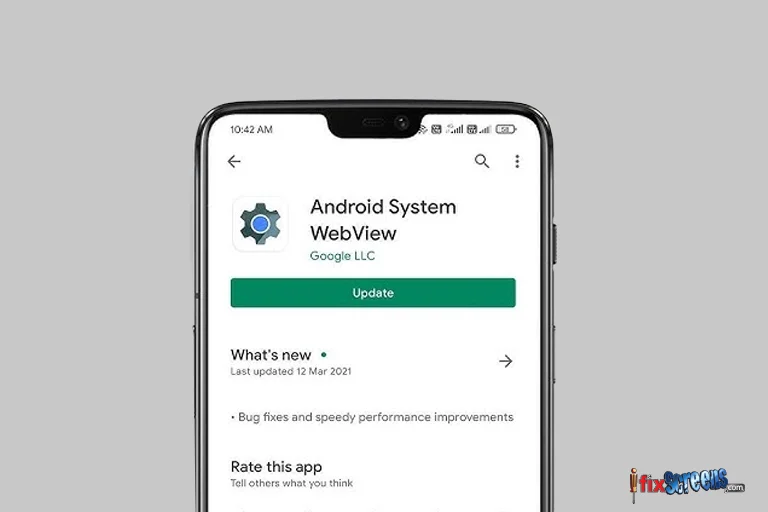
Outdated apps and system software can lead to "app is crashing". Check the Google Play Store for app updates for the crashing app and any other issues causing conflicts. Additionally, ensure your Phone's system has the latest update by going to Settings > System (or About Phone) > System Updates.
4. Check App Permissions:
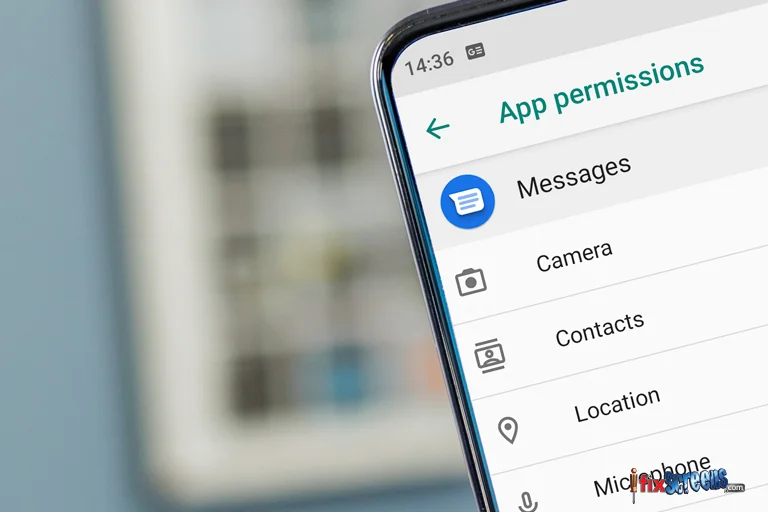
Some apps require specific permissions to function correctly. Navigate to Settings > Apps (or Applications) > Find the app > Tap "Permissions." Ensure all necessary permissions are granted.
5. Free Up Storage Space:
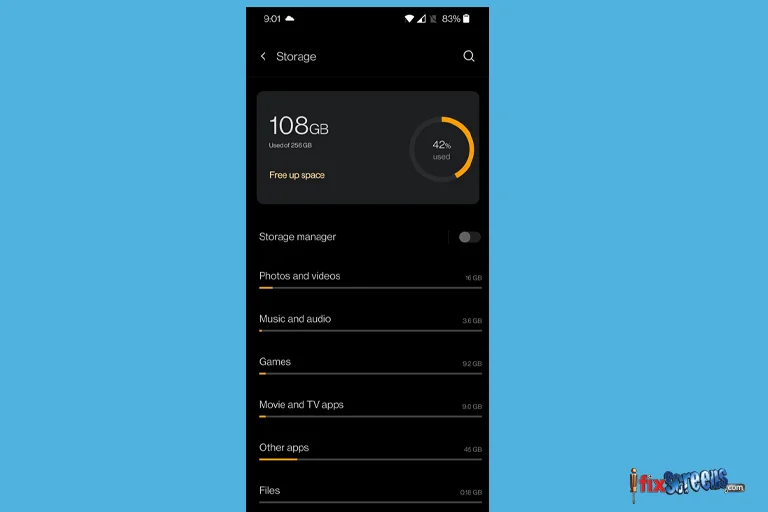
A cluttered phone with low storage can lead to app crashes. Try deleting unused apps, photos, videos, and other large files. You can transfer files to a microSD card (if your device supports it) or a cloud storage service like Google Drive.
6. Check for Conflicting Apps:
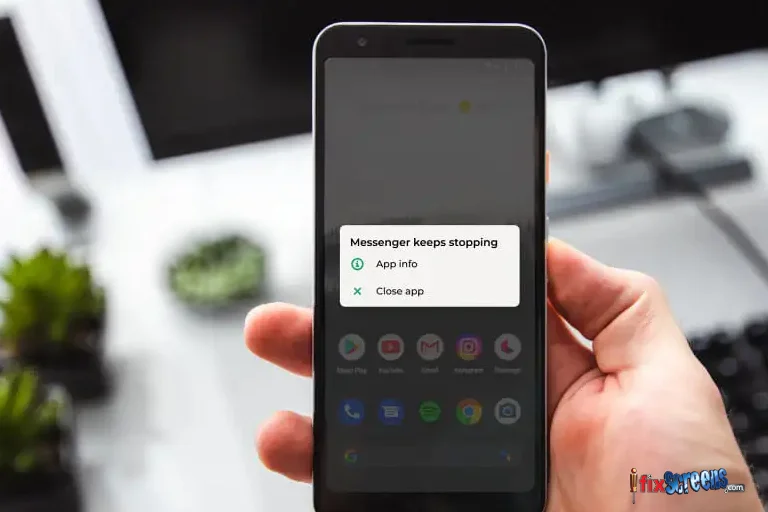
Rarely, a conflicting app might be causing crashes. Try turning off recently installed apps individually to see if the crashes stop. This can help identify the culprit.
7. Reinstall the App:
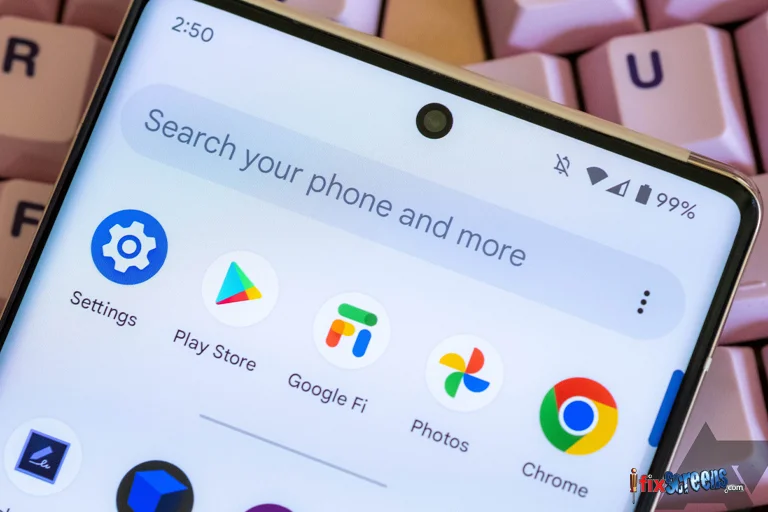
If none of the above solutions work, try reinstalling the app. This removes any corrupted files that might be causing the crashes.
- Launch the Google Play Store app.
- Click on the Profile icon located at the top right corner.
- Choose "Manage apps & devices" and click "Manage."
- Locate the app causing problems and tap on it.
- Select "Uninstall" to remove the app.
- Reinstall the apps you've just uninstalled from the Play Store.
8. Wipe the System Cache Partition (For Advanced Users):
This option clears temporary system files that might be causing issues.
To prevent app crashes, clearing your app's cache can help by removing unnecessary files:
- Access your device's Settings.
- Select either "Apps" or "Apps & notifications."
- Locate the problematic app that keeps crashing, then tap on it.
- Navigate to "Storage" or "Storage & cache."
- Tap on "Clear cache."
- Repeat these steps for other frequently used apps as needed.
9. Factory Reset (Last Resort):
This option wipes all your Phone's data and settings, restoring it to its original state. Only use this as a last resort, as it completely erases all your information. Ensure you back up your data before proceeding.
10. Report the Problem:
If none of these solutions fix the crash, it might be an issue with the app itself. Notify the app developer about the issue via either the Google Play Store or the app's official website. This helps developers identify and fix bugs in future updates.
Other Fixes:
- Verify Internet Connectivity: An unstable internet connection can occasionally lead to app crashes, particularly for apps that heavily depend on online functionalities.
- Force Stop App: If an app misbehaves, you can force it to stop. Go to Settings > Apps (or Applications) > Find the app > Tap "Force Stop."
- Look for Specific Fixes (One UI, Galaxy Devices): Some phone manufacturers like Samsung have their user interfaces (e.g., One UI). If you have a specific device model (e.g., Galaxy S series), you might find troubleshooting options tailored to your Phone.
Final Thoughts
Android app crashes can be frustrating, but with these ten effective fixes, you should be well-equipped to tackle them. Remember, routine maintenance like updates, storage management, and restarts can go a long way in preventing crashes altogether. If you continue to experience issues, don't hesitate to report the problem to the app developer or seek help from the Android community forums. You can get your apps back on track with troubleshooting and enjoy a smooth and stable Android experience. For personalized assistance or queries about your Android phone, feel free to reach out to any local iFixScreens store.
- Android Secret Codes For Mastering Your Phone
- Android Tech Tips And Tricks: Unlock Your Smartphone's Full Potential
- How To Connect Apple Watch To Android Without iPhone